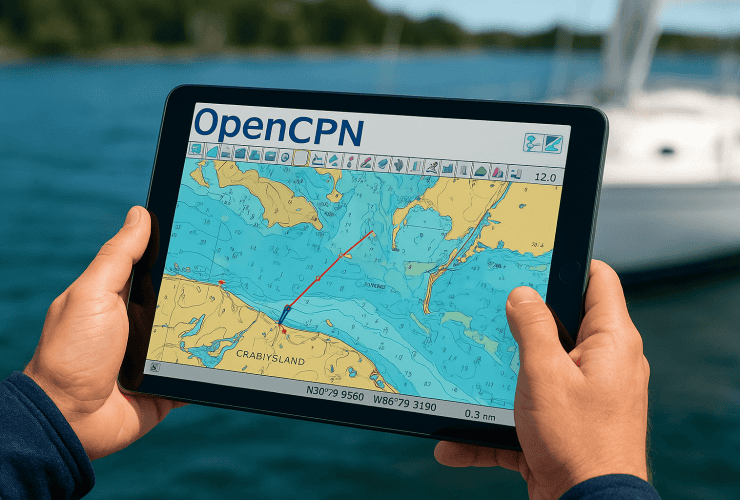
If you’ve recently tried to pull up the Navionics web app to check charts or plan a route, you probably noticed something frustrating: it’s gone. The browser-based tool that thousands of boaters relied on for viewing marine maps, marking waypoints, and prepping trips has been shut down, and the redirect isn’t exactly intuitive.
We deal with Destin’s waterways every single day at Original Crab Island. Whether we’re sending pontoon boats out to the sandbar or coordinating fishing charters in the Gulf, accurate marine charts matter to us and to our customers. So when Navionics pulled the plug on its standalone web viewer, we paid attention. Many of our guests, especially those who rent boats and explore on their own, have asked us about it directly.
This article breaks down exactly what happened to the Navionics web app, where its functionality lives now under the Garmin umbrella, and what your current options are for accessing the same marine chart data online. If you’ve been searching for answers, you’re in the right place.
What the Navionics web app was used for
The Navionics web app gave boaters a full marine chart viewer that ran directly in any browser, no download required. You could open it on your laptop or desktop and immediately see nautical charts, depth contours, marina locations, and navigational hazards for waterways around the world. It was essentially the same chart data found in Navionics’ mobile app, just accessible from a bigger screen.
Browsing charts and checking water depths
Before heading out on the water, you could use the tool to study the exact area you planned to navigate. The interface let you zoom in, inspect depth contours, and spot potential obstacles like shallow sandbars or marked hazards. For anyone exploring unfamiliar waters, that level of detail on a full computer screen was far easier to work with than squinting at a phone.
Reviewing depth charts before you launch puts you in a much stronger position, especially in areas with shifting sandbars or tricky inlet approaches.
You could also layer on additional data types, including tide and current information, weather overlays, and points of interest like fuel docks and pump-out stations. The platform let you customize what you saw on the chart, making it a practical research tool for any type of outing.
Planning routes and saving your data
The app let you drop waypoints directly onto the chart and build complete routes from start to finish. You could measure distances, estimate travel times, and then export that data to a compatible GPS or chartplotter. If you had an active Navionics+ subscription, your routes, SonarChart recordings, and custom marks all synced to your account, so nothing was lost when you switched between devices.
Syncing also meant you could review and refine your plan on a large monitor before boarding. That workflow, planning on the web and executing on the water, is exactly how a lot of regular boaters used the platform.
What happened to the Navionics web app

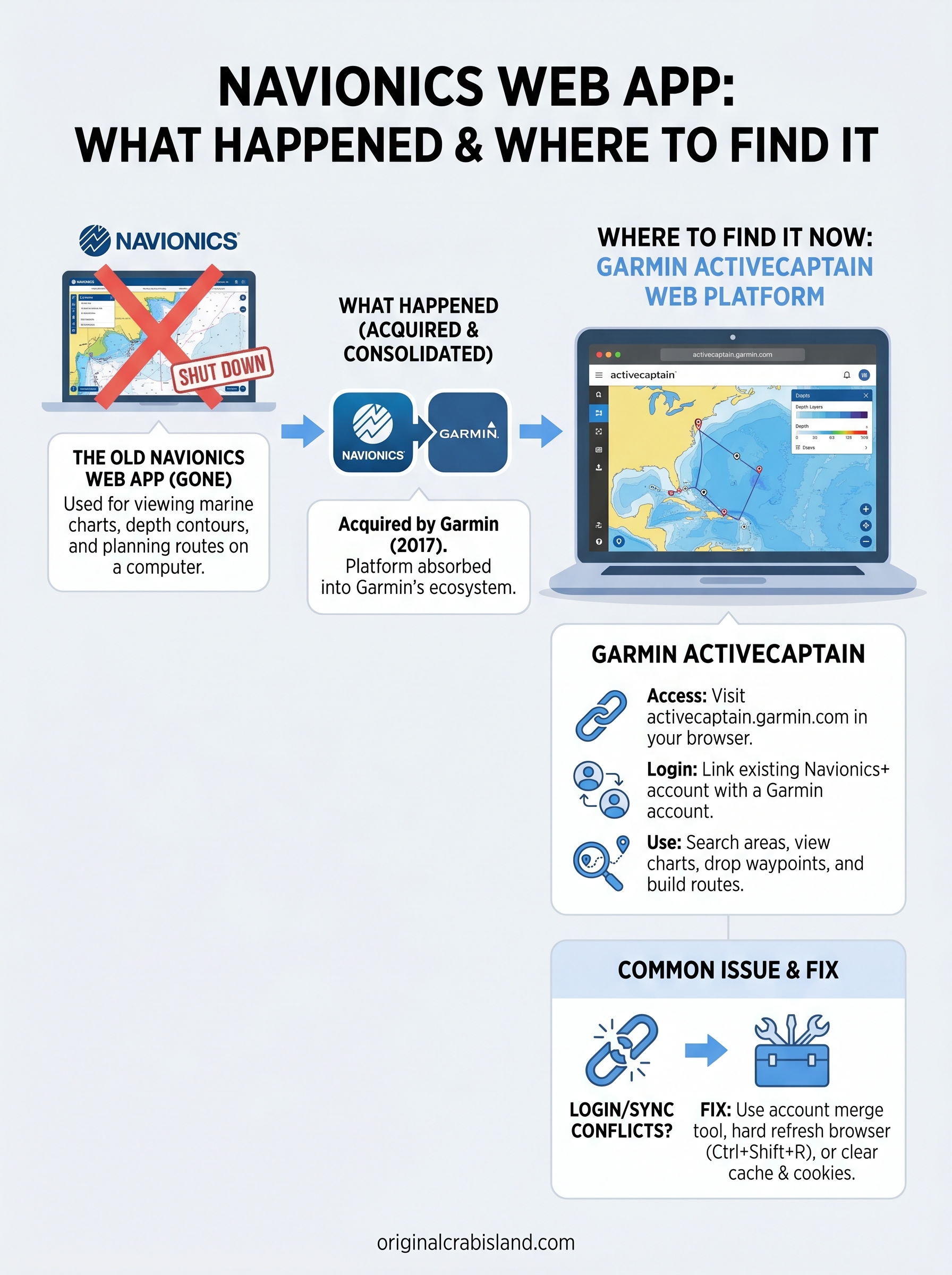
Navionics was acquired by Garmin in 2017, and the transition has been gradual ever since. For a while, the standalone Navionics web app continued to operate on its own domain, but Garmin eventually folded the functionality into its own platform. The standalone web viewer was officially shut down, and users who navigated to the old URL were redirected without much explanation.
Garmin absorbed the platform
The move was part of Garmin’s broader strategy to consolidate its marine navigation products under a single ecosystem. Rather than maintaining a separate Navionics web tool, Garmin migrated the chart-viewing functionality to its own web-based system. Your Navionics+ subscription credentials still work, but you now log in through Garmin’s platform instead of the original Navionics site.
The transition was not widely announced, which is why so many boaters still search for the original Navionics URL and end up confused.
All of the core chart data made it through the switch, including SonarChart depth layers and community edits tied to your account. Nothing was lost on the content side. The main change is simply where you go to access it, and the new interface takes a short adjustment period to navigate comfortably.
Where to find the chart viewer now
The replacement for the original navionics web app is Garmin’s ActiveCaptain web platform, which now hosts the chart viewer that used to live on the Navionics site. You can reach it by visiting activecaptain.garmin.com and selecting the chart viewer from the navigation. The underlying chart data, depth layers, and SonarChart features are all present, even though the interface looks different from what you remember.
Bookmark the Garmin ActiveCaptain URL now so you stop losing time chasing the old Navionics redirect.
Accessing charts through Garmin’s platform
Once you land on Garmin’s ActiveCaptain site, the chart viewer opens directly in your browser with no software to install. The map loads your regional nautical charts and depth data the same way the old tool did.
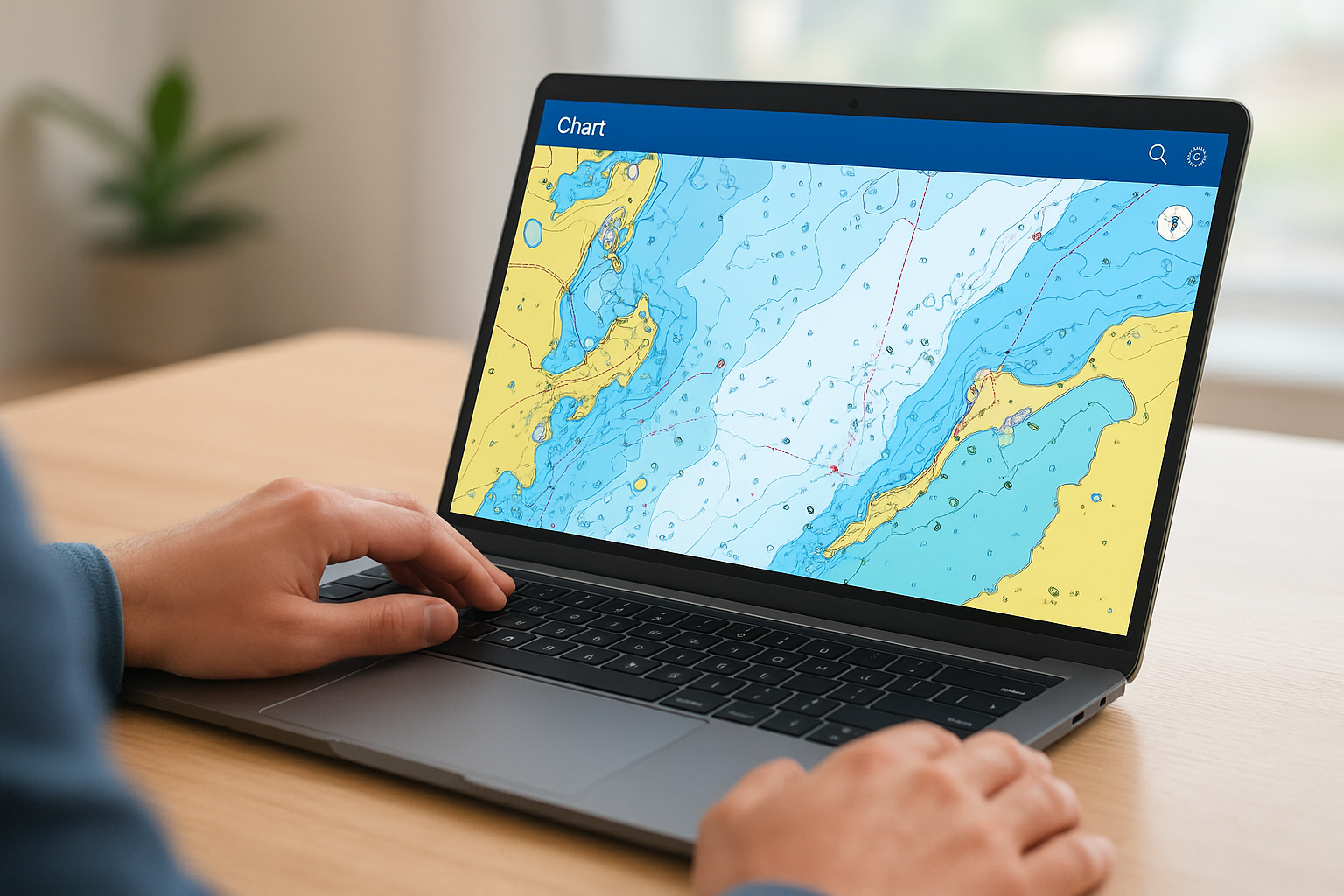
You can also toggle on tide overlays and weather layers for a complete pre-trip picture before you ever leave the dock.
Logging in with your existing account
Connecting your Navionics+ subscription to a Garmin account is straightforward, and the login screen walks you through the merge process if your accounts aren’t linked yet. Here’s what that step requires:
- Your original Navionics login email
- A Garmin account (free to create if you don’t have one)
- Confirmation to transfer your subscription and saved data
How to use it on a computer
Once you’re logged in on Garmin’s ActiveCaptain, the chart viewer works much like the old navionics web app did. The map loads directly in your browser window and responds to standard zoom controls, so you can scroll to zoom in and out or use the on-screen buttons. Click anywhere on the chart to pull up depth data, hazard notes, or point-of-interest details for that specific location.
Searching for a specific area
Type a location name or set of coordinates into the search bar at the top of the screen and the chart jumps directly to that spot. From there, you can zoom to the level of detail you need, whether that’s a broad regional view or a tight look at a specific marina entrance or inlet.
Use the search function to pull up Destin’s Crab Island area and check the depth contours before your trip out to the sandbar.
Dropping waypoints and building a route
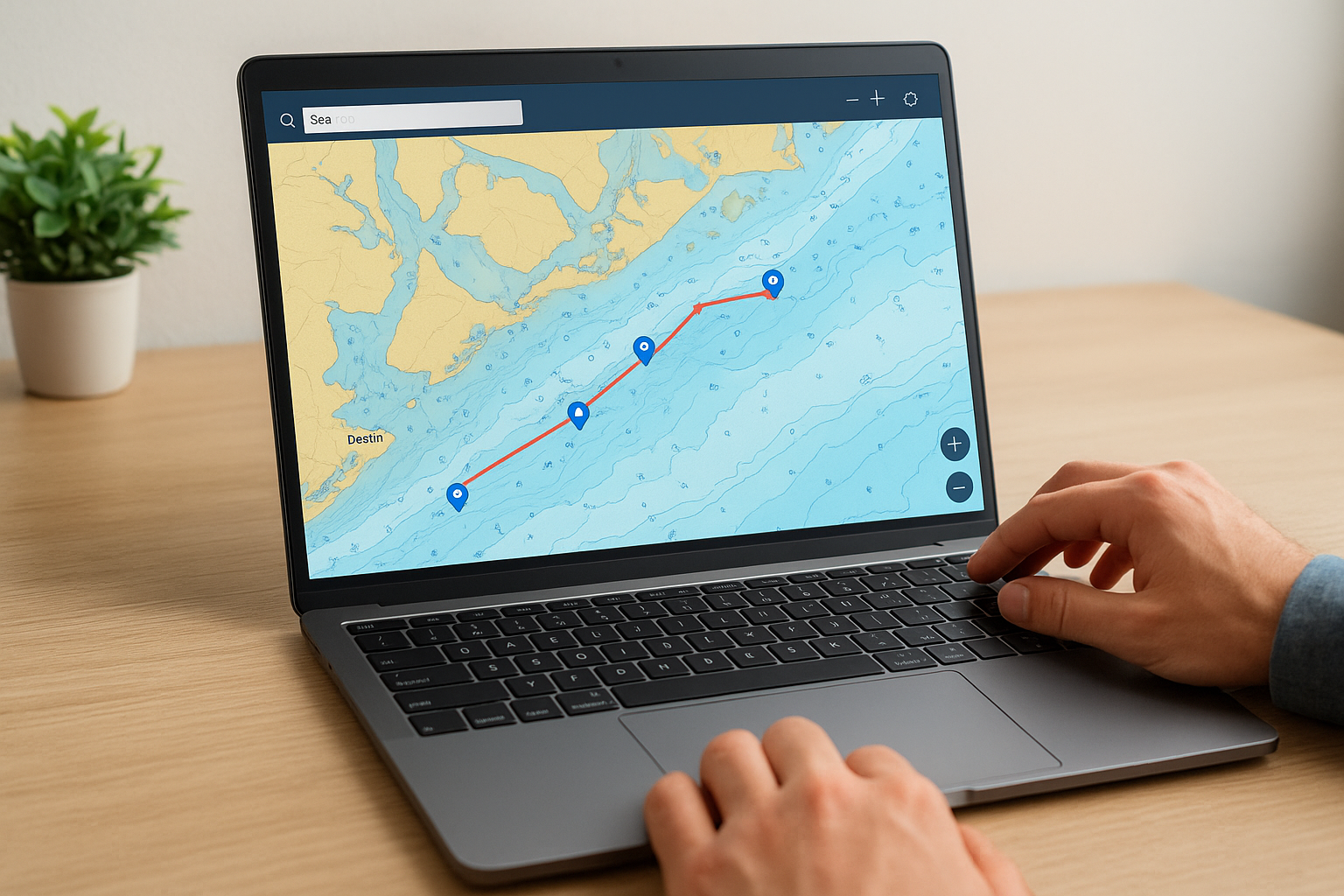
Select the route-building tool from the toolbar and click your starting point on the chart. Each additional click adds a new waypoint to your route. The tool automatically calculates the total distance as you build, so you can estimate travel time and fuel needs before you ever leave the dock.
Common problems and practical workarounds
Many users hit the same snags when moving from the original navionics web app to Garmin’s ActiveCaptain. The most common issue is a login conflict when your old Navionics email is already tied to a separate Garmin account. Use the account merge tool on the Garmin login page to link both profiles before you try to access your saved data.
Chart not loading or showing a blank screen
If the chart loads blank or freezes mid-session, start with a hard browser refresh (Ctrl+Shift+R on Windows or Cmd+Shift+R on Mac). Clearing your browser’s cached data and cookies specifically for the Garmin domain resolves most loading errors without any further troubleshooting.
If the problem continues across multiple browsers, confirm that your browser is updated to its latest version, since older versions often block the map tiles from rendering.
Saved routes not appearing after login
Your waypoints and saved routes carry over during the account merge, but they sometimes take a few minutes to sync. Refresh the page once the merge completes, then log out and back in if the data still does not appear. If the issue persists, try these steps:
- Clear site data for activecaptain.garmin.com in your browser settings
- Switch to a different browser to rule out an extension conflict
- Verify that your Navionics subscription is still active inside your Garmin account profile
Final takeaways
The navionics web app you remember is gone, but its core functionality lives on through Garmin’s ActiveCaptain platform. The chart data, depth layers, and SonarChart recordings all transferred over. Your saved routes and waypoints are still accessible once you link your Navionics credentials to a Garmin account. The main adjustment is a new URL and a slightly different interface, both of which take only a few minutes to get comfortable with.
Planning your trip on a full screen before you hit the water is still one of the most practical steps you can take, especially in areas with shifting sandbars, tight inlets, or heavy boat traffic. Check your depths, build your route, and confirm your waypoints before you leave the dock.
When you’re ready to get on the water, book a pontoon rental or fishing charter in Destin and put those charts to real use.
Popular Crab Island Pages
- Crab Island Pontoon Rentals
- Crab Island Fishing Charters
- Crab Island Boat and Yacht Rentals
- Crab Island Parasailing
- Crab Island Jet Ski Rentals
- Crab Island Helicopter Rides
- Crab Island Snorkeling Tours
- Crab Island Paddleboard Rentals
- Crab Island Kayak Rentals
- Crab Island Bike Rentals
- Crab Island Shark Boat
- Crab Island Pirate Ship
- Crab Island Tiki Rentals
- Crab Island Snorkeling Tours